
Display and chatbot switcher
In Display & Placement, enable public display and select all pages or specific pages, with additional options for posts and archives. Selected-page mode requires at least one valid destination.
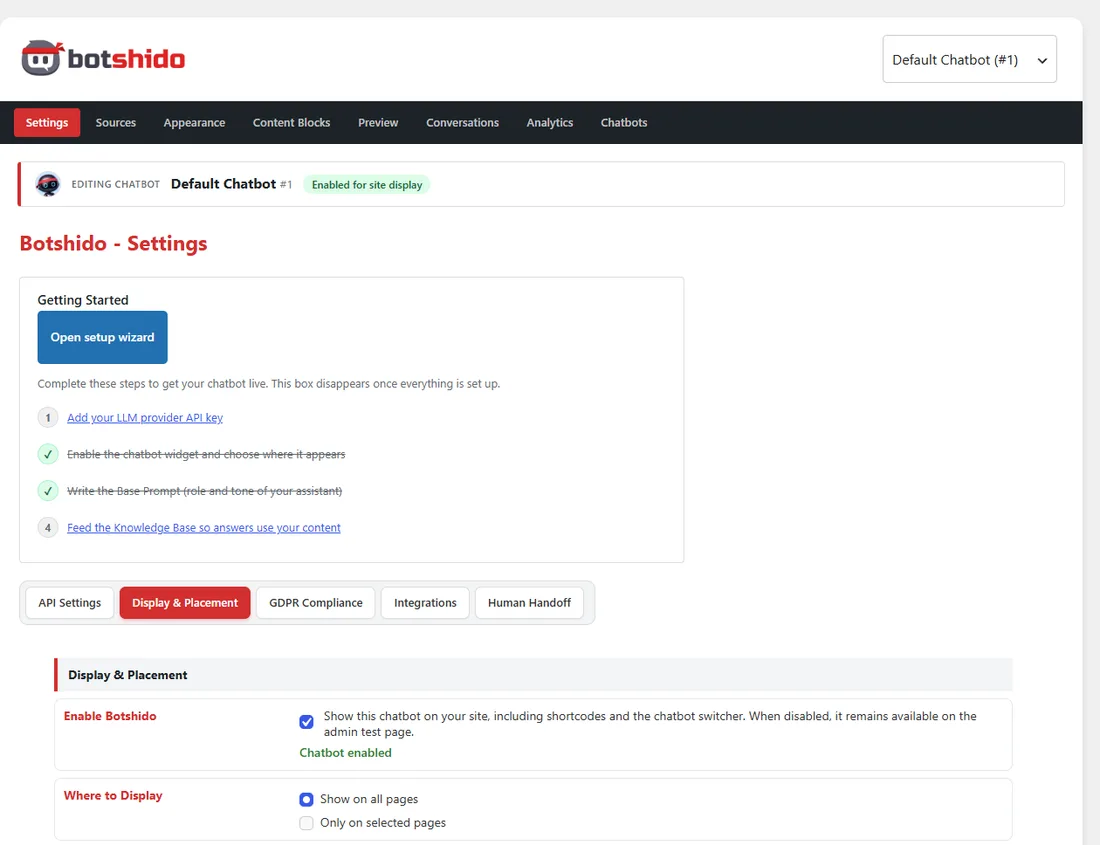
A chatbot disabled for public display is not shown through shortcodes or chatbot switching either. You can still use its administrator test page. If it is also inactive in chatbot management, activate it before publishing.
For the automatic widget, an explicitly assigned page takes priority over post/archive rules and the all-pages rule. Ties go to the chatbot with the lowest ID. A static front page can be selected by name in the page list. Shortcodes follow a separate selection: an explicit ID requests that chatbot, while no ID selects the default chatbot; this can override automatic page selection.
Open the chat from a link
Section titled “Open the chat from a link”Set #ninjaibot-open as the URL of a text link, button or WordPress menu item. Clicking it opens the widget’s current chatbot, including the chatbot selected after switching, without navigating away. An already open chat stays open. The widget must be present on the page.
HTML example: <a href="#ninjaibot-open">Talk to Botshido</a>.
Shortcodes
Section titled “Shortcodes”Place one of these shortcodes in page content:
[botshido][botshido id="2"][botshido_switcher][botshido id="2" switcher="1"]Choose one example for your needs and replace 2 with the ID shown in chatbot management. The shortcode requests the widget on that page. It is rendered as a floating interface in the footer, not as a box embedded at that exact position in the text.
The aliases [botshido_display] and [botshido_display_switcher] remain available. The automatic widget does not show the switcher by default; use the dedicated shortcodes to enable it.
Multiple assistants and switch buttons
Section titled “Multiple assistants and switch buttons”In chatbot management, enable at least two active assistants for the public switcher, set their order and Role Label, and enable their public display. The role label is shown below the avatar only when the switcher is visible; a single chatbot’s floating button does not show the label.
To offer a switch within the conversation, use the Chatbot Switch prebuilt content block and enter the destination ID. That chatbot must be available among the page’s switch destinations. Advanced HTML example:
<button type="button" data-ninjaibot-switch-to="2"> Talk to the technical assistant</button>